Reciept Settings
Receipt Settings
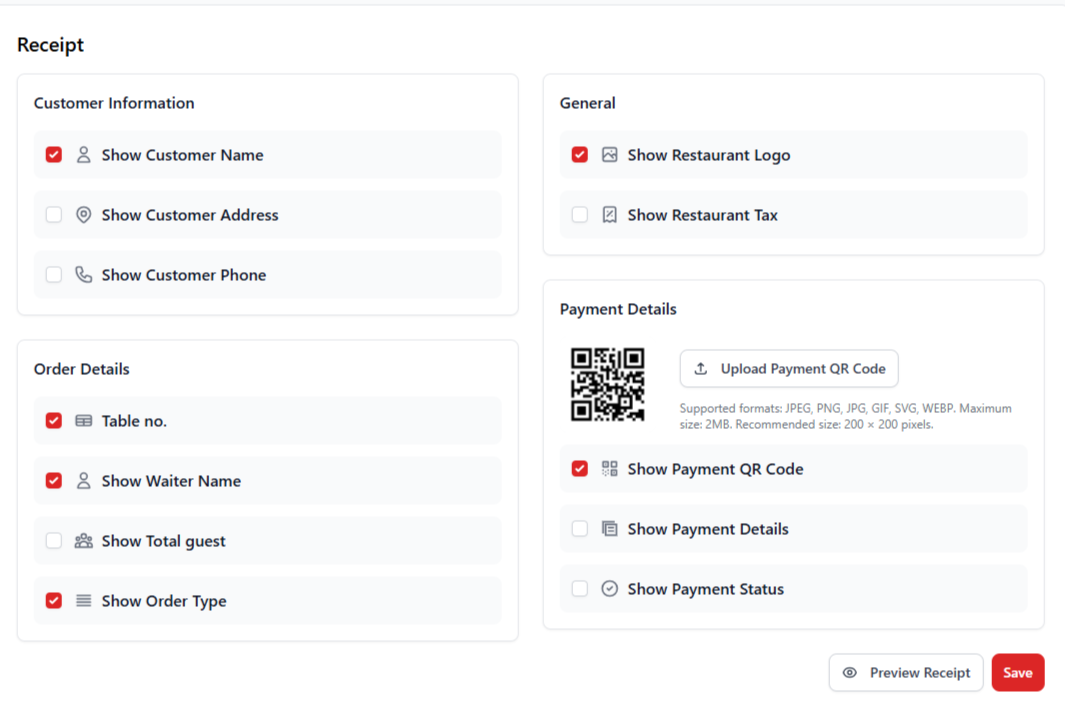
Receipt Settings allow administrators to customize the information displayed on printed or digital receipts. These settings help restaurants control what customer details, order information, and payment details appear on the final receipt provided to customers.
1. Customer Information
This section controls which customer details appear on the receipt. Restaurants can enable or disable specific customer information fields depending on their requirements.
| Setting | Description |
|---|---|
| Show Customer Name | Displays the customer's name on the receipt. |
| Show Customer Address | Displays the customer's address on the receipt. |
| Show Customer Phone | Displays the customer's phone number on the receipt. |
2. Order Details
Order details define the operational information shown on the receipt related to the order and service.
| Setting | Description |
|---|---|
| Table Number | Displays the table number associated with the order. |
| Show Waiter Name | Displays the name of the waiter who handled the order. |
| Show Total Guests | Displays the total number of guests for the order. |
| Show Order Type | Displays the order type such as Dine-In, Takeaway, or Delivery. |
3. General Settings
General settings allow restaurants to include branding and tax information on receipts.
| Setting | Description |
|---|---|
| Show Restaurant Logo | Displays the restaurant logo at the top of the receipt. |
| Show Restaurant Tax | Displays the restaurant tax identification details on the receipt. |
4. Payment Details
Payment details control how payment information is displayed on the receipt. Restaurants can also include a QR code to allow customers to make payments directly from the receipt.
| Setting | Description |
|---|---|
| Upload Payment QR Code | Upload a QR code that customers can scan to make payments. |
| Show Payment QR Code | Displays the payment QR code on the receipt. |
| Show Payment Details | Displays payment method details such as Cash, UPI, or Card. |
| Show Payment Status | Displays the payment status such as Paid or Pending. |
5. Preview Receipt
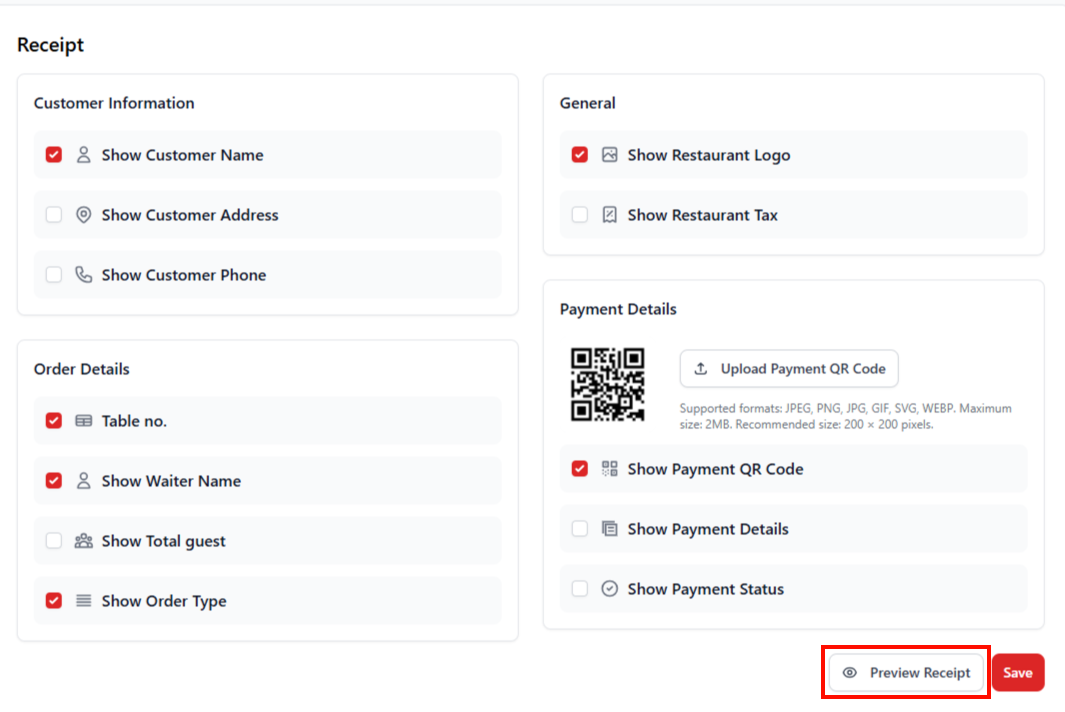
The preview receipt option allows administrators to check how the receipt will appear before saving the configuration. This helps ensure that all required information is correctly displayed.
Best Practices
- Always display the restaurant logo for branding.
- Enable payment status to avoid confusion for customers.
- Include waiter and table information for better order tracking.
- Use QR code payments to enable faster transactions.