How to Add Customer
How to Add a Customer
Adding customers in the system allows you to store important contact details, speed up billing, and track order history for repeat business. Customers can be added directly from the Customer section or during POS billing.
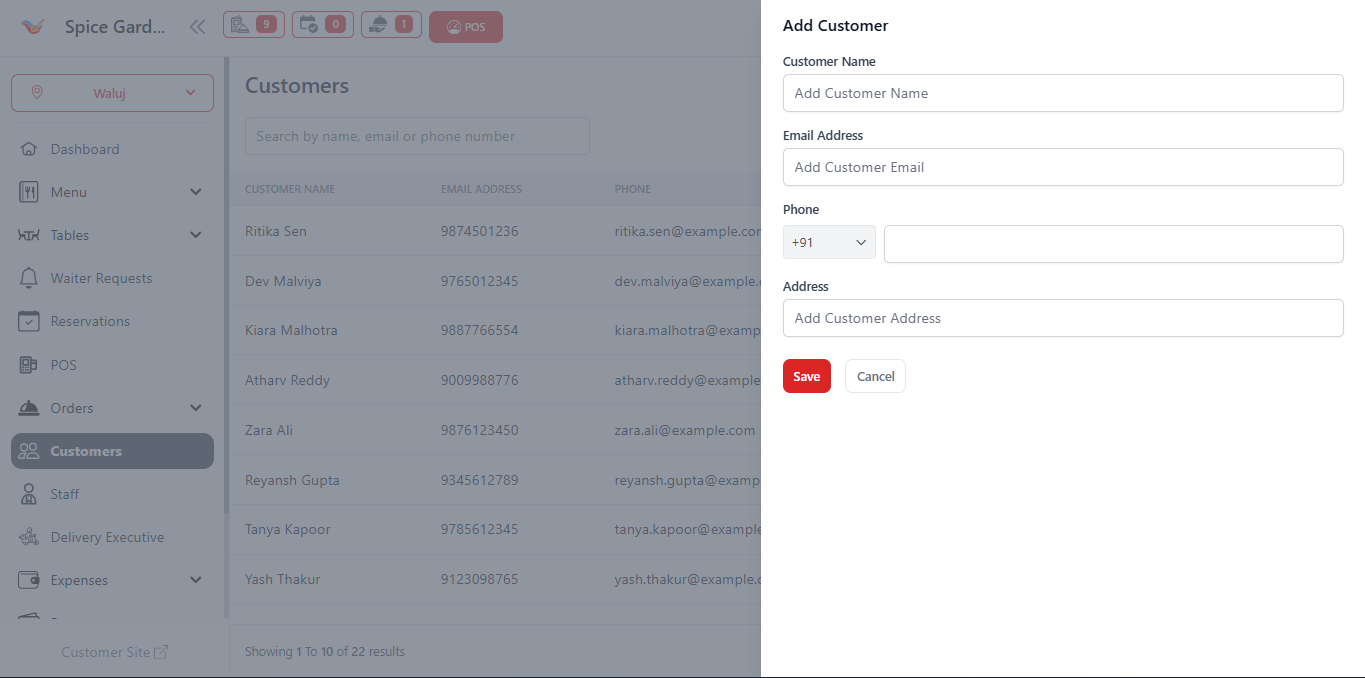
Step-by-Step Process
- Go to Customers from the left sidebar menu.
- Click the Add Customer button located at the top-right corner.
-
Enter the required customer details:
- Customer Name – Full name of the customer.
- Email Address – Used for digital receipts and communication.
- Phone Number – Primary contact number (with country code).
- Address – Customer's delivery or residential address.
- After entering all details, click the Save button.
- The customer will now appear in the customer list and can be used during POS orders.
Tip: Adding customers during billing helps build a strong customer database for future marketing and loyalty programs.
Important Notes
- Phone number is recommended for faster customer lookup in POS.
- Email is optional but useful for sending invoices.
- Duplicate phone numbers should be avoided.
- Customer details can be edited anytime from the Customer section.