Menu-items Categories
Item Categories
Item Categories organize your menu items into logical groups such as Starters, Main Course, Beverages, or Desserts. Proper categorization improves POS speed, order accuracy, and menu clarity.
1. What Are Item Categories?
Item Categories act as structured groups that organize menu items. They help separate different types of dishes for easier navigation in the POS and customer menu.
Example categories:
- Fast Food
- North Indian
- South Indian
- Beverages
- Desserts
Categories do not contain pricing. Pricing is managed at the Menu Item level.
2. Accessing Item Categories
- Login to the Dashboard.
- Go to Menu in the sidebar.
- Select Item Categories.
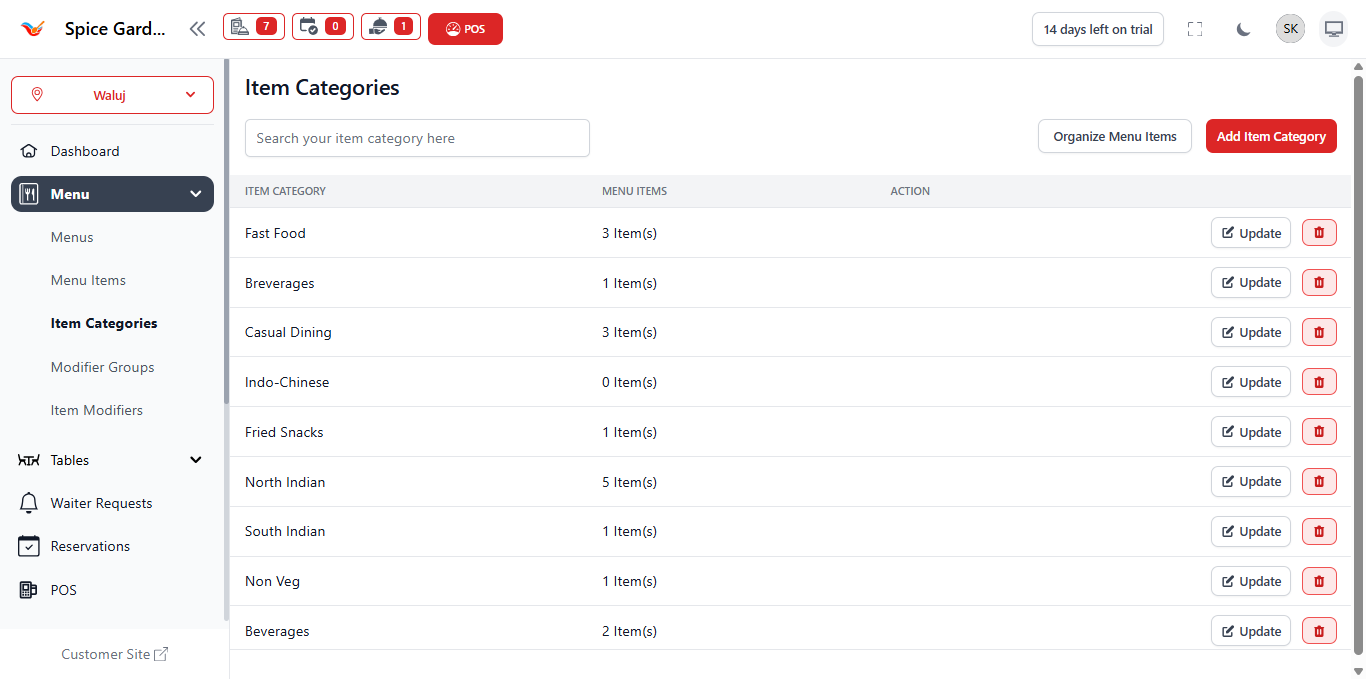
The system will display a table of all existing categories.
3. Understanding the Categories Table
The categories table displays the following columns:
- Item Category — Name of the category.
- Menu Items — Total number of items assigned to that category.
- Actions — Update or Delete options.
The "Menu Items" count helps identify active and unused categories.
4. Creating a New Category
- Click Add Item Category.
- Enter the Category Name.
- Click Save.
Best Naming Practices
- Keep names short and clear.
- Avoid duplicate category names.
- Group similar items logically.
Categories must be created before adding items.
5. Updating a Category
- Click Update beside the category.
- Edit the category name.
- Save changes.
Updating a category automatically reflects on all assigned items.
6. Deleting a Category
- Click the Delete icon.
- Confirm deletion.
A category cannot be deleted if menu items are assigned to it.
You must reassign or remove those items first.
7. Why Categories Are Important
- Improves POS speed during peak hours.
- Enhances digital menu presentation.
- Reduces search time for staff.
- Organizes large menus effectively.
Well-organized categories directly improve operational efficiency.