How to Update Customer
How to Update Customer Information
Customer details can be modified at any time to ensure accurate records. Updating customer information helps maintain correct contact details, improves communication, and ensures smooth billing operations.
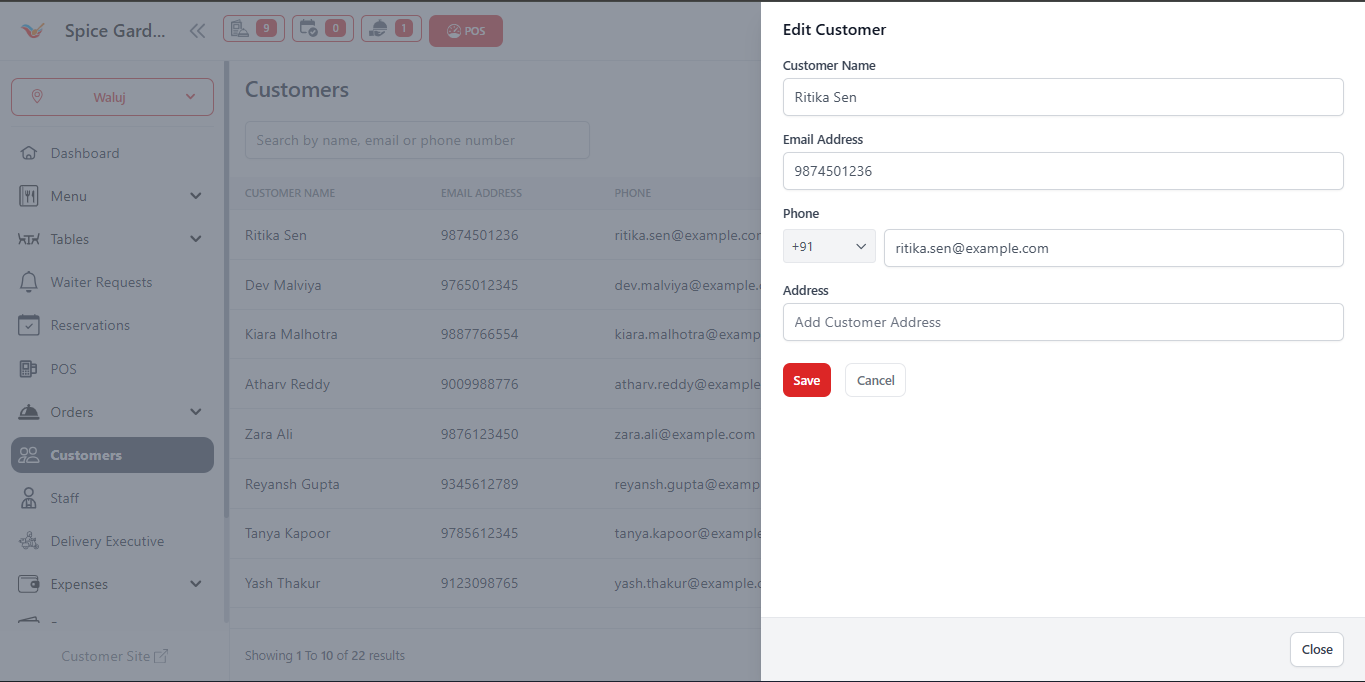
Step-by-Step Process
- Navigate to the Customers section from the left sidebar.
-
Locate the customer you want to update using:
- Search bar (search by name, email, or phone number)
- Customer list table
- Click the Update button in the Action column next to the customer name.
- The Edit Customer form will open.
-
Modify the required fields:
- Customer Name
- Email Address
- Phone Number
- Address
- Click the Save button to apply changes.
Important Considerations
- Ensure phone numbers are correct to avoid duplicate entries.
- Updated information will reflect immediately in POS and Reservations.
- Customer order history remains unchanged when details are updated.
- Incorrect updates can be corrected anytime by editing again.
Maintaining accurate customer data improves repeat business tracking and enhances customer experience.