How to Refund a Paid Amount
How to Refund a Paid Amount
The refund feature allows administrators to return a previously received payment in case of order cancellation, billing errors, duplicate transactions, or customer disputes. Refunds should be processed carefully as they directly impact revenue records.
1. When to Use Refund
- Order was cancelled after payment.
- Wrong amount was charged.
- Duplicate payment received.
- Customer complaint requiring reimbursement.
2. Steps to Refund a Paid Amount
- Go to Payments from the sidebar.
- Locate the completed payment entry.
- Click the Refund button.
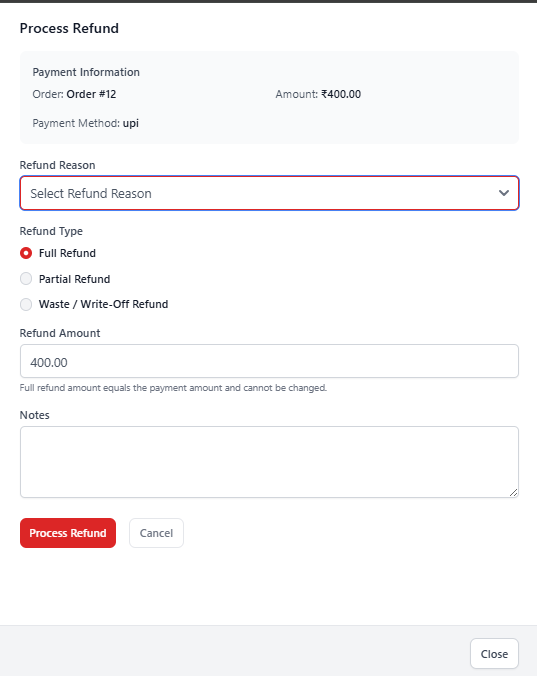
- The refund panel will open.
- Select the Refund Reason.
- Choose the appropriate Refund Type:
- Full Refund – Returns the entire paid amount.
- Partial Refund – Returns a specific portion of the payment.
- Waste / Write-Off Refund – Marks amount as business loss.
- If Partial Refund is selected, enter the refund amount.
- Add optional notes for record-keeping.
- Click Process Refund to complete the action.
3. Important Rules
- Full refund amount cannot be modified.
- Refund transactions are recorded for audit purposes.
- Refunds affect total revenue calculations.
- Ensure refund reason is properly selected.
⚠️ Refund actions may not be reversible. Always verify order details before confirming.
4. Financial Impact
- Reduces total sales revenue.
- Updates order payment status.
- Maintains financial accuracy.
- Ensures transparency in reporting.
Regularly monitor refunds to detect operational issues or billing errors.