KOT Order Settings
KOT Settings
KOT (Kitchen Order Ticket) Settings allow administrators to configure how kitchen orders are processed and how order statuses are managed between the POS system and customers. These settings help restaurants track food preparation stages efficiently and maintain clear communication between the kitchen and service staff.
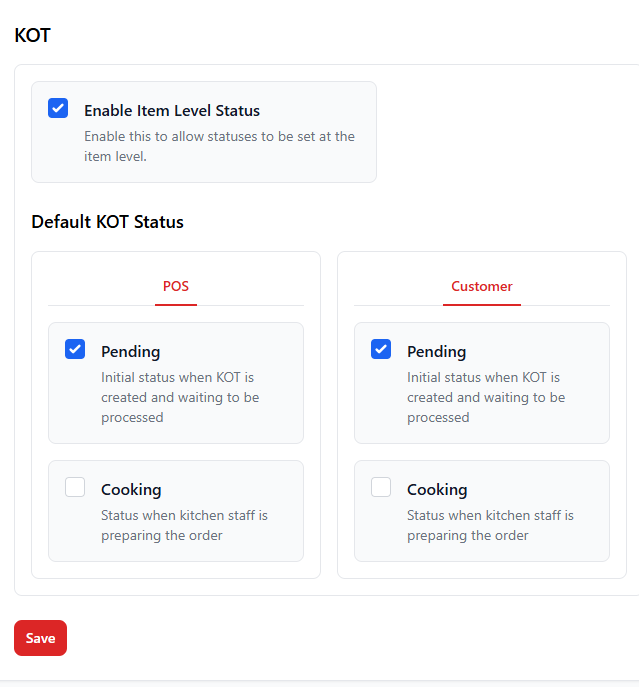
1. Enable Item Level Status
This option allows the system to track order preparation status at the individual item level instead of the entire order. It is useful for restaurants where different dishes in a single order may have different preparation times.
| Option | Description |
|---|---|
| Enable Item Level Status | When enabled, each menu item can have its own preparation status such as Pending, Cooking, or Ready. This helps kitchen staff manage orders more efficiently. |
2. Default KOT Status
Default KOT status determines the initial stage of an order when it is sent to the kitchen. Separate statuses can be configured for the POS interface and for what customers see.
| Status | Description |
|---|---|
| Pending | This is the default status when a KOT is first created and the order is waiting to be processed by the kitchen. |
| Cooking | Indicates that the kitchen staff has started preparing the order. |
3. POS vs Customer Status
The system allows different status visibility for POS staff and customers to ensure clear communication without exposing internal kitchen processes unnecessarily.
| View | Purpose |
|---|---|
| POS | Shows the order preparation status to restaurant staff using the POS system. |
| Customer | Shows simplified order status updates to customers. |
Best Practices
- Enable item-level status for restaurants with complex menus.
- Keep the customer-facing statuses simple to avoid confusion.
- Use KOT statuses to improve coordination between kitchen and service staff.
- Regularly review KOT workflows to improve kitchen efficiency.