Billing and Payment Options
Billing, KOT & Payment Processing
After selecting items in the POS system, staff can generate KOT, create bills, apply tips, and process payments using multiple payment methods. This section explains every billing-related action available on the POS screen.
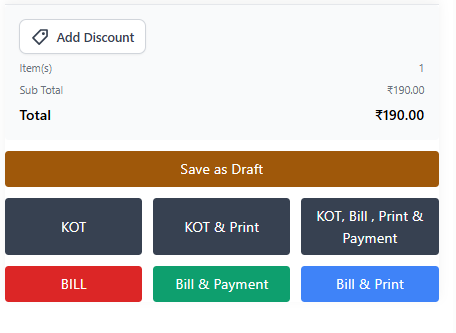
1. Understanding POS Action Buttons
Once items are added to the order, the POS system displays several action buttons at the bottom of the screen. These buttons control how the order flows through kitchen processing, billing, and payment stages.
Save as Draft
Temporarily saves the order without sending it to the kitchen or generating a bill.
- Used when the customer is still deciding.
- Allows staff to reopen and edit later.
- Does not generate KOT or invoice.
KOT (Kitchen Order Ticket)
Sends the order details to the kitchen for preparation.
- Does not generate a bill.
- Can be generated multiple times for additional items.
- Primarily used for Dine-In orders.
KOT & Print
Sends the order to the kitchen and prints a physical KOT receipt.
- Used in restaurants with kitchen printers.
- Ensures kitchen staff receive physical order slip.
Bill
Generates the customer invoice without processing payment.
- Shows itemized bill.
- Includes taxes and discounts.
- Does not mark order as paid.
Bill & Payment
Opens the payment window immediately after generating the bill.
- Most commonly used option.
- Allows direct payment collection.
- Marks order as paid after completion.
Bill & Print
Generates the invoice and prints it instantly.
- Used when customer requests printed bill.
- Does not automatically complete payment unless confirmed.
2. KOT (Kitchen Order Ticket)
KOT sends the order details to the kitchen without generating a final invoice. It ensures the kitchen starts preparing food before payment is completed.
- Used primarily for Dine-In orders.
- Can be generated multiple times for additional items.
- Does not affect payment status.
3. Generating the Bill
The bill includes:
- Itemized list
- Subtotal
- Tax calculations
- Discount (if applied)
- Total payable amount
Generating a bill prepares the order for payment settlement.
4. Processing Payment
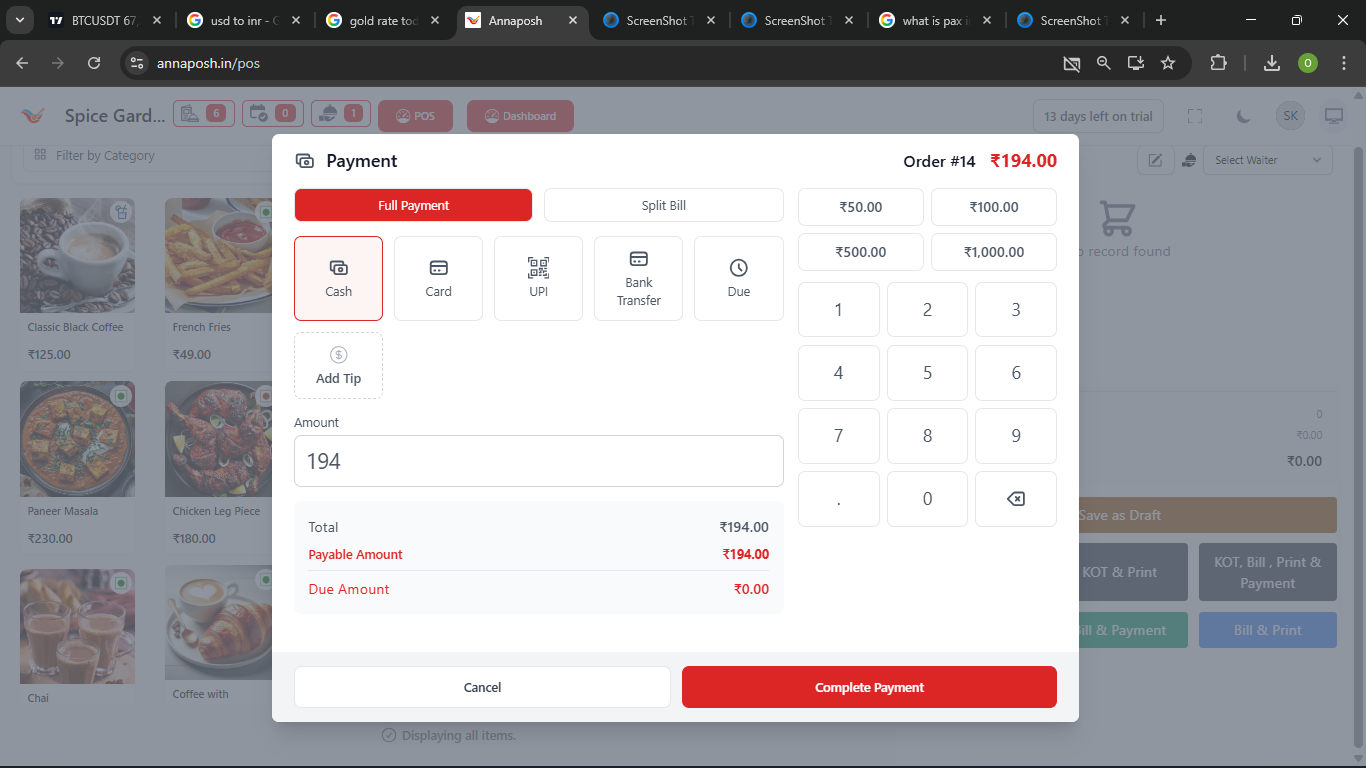
The payment window allows selection of multiple payment methods:
- Cash
- Card
- UPI
- Bank Transfer
- Due (partial payment or outstanding balance)
Payment features include:
- Full payment
- Split payment (multiple methods)
- Auto-calculation of remaining amount
- Payment confirmation
5. Adding Tip Before Payment
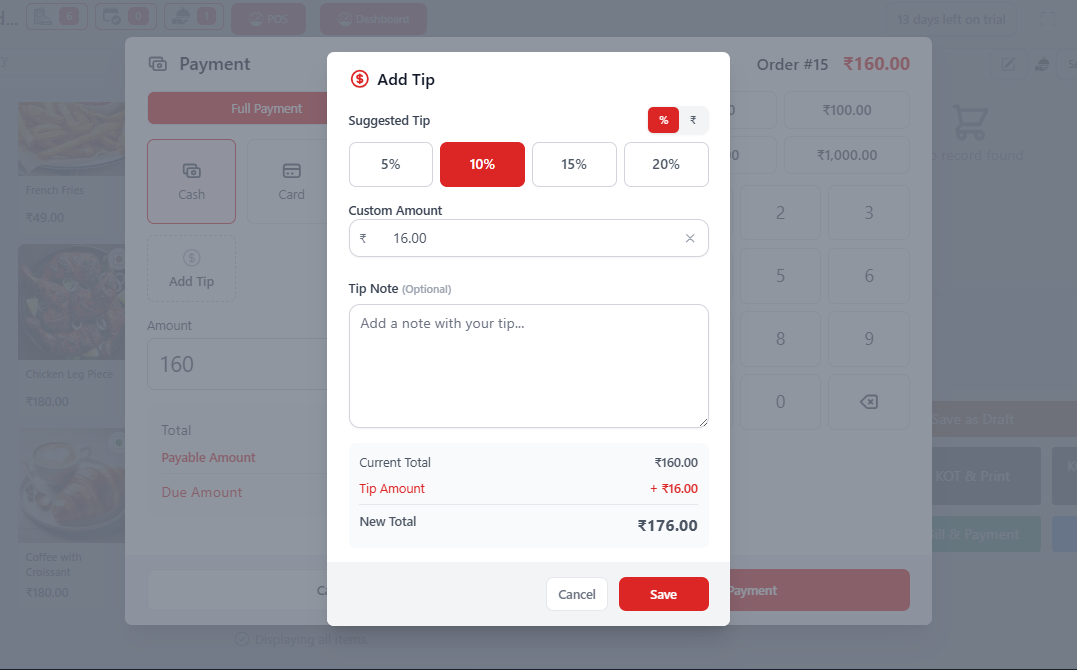
Staff can add tips before finalizing payment.
- Select preset percentage (5%, 10%, 15%, 20%)
- Enter custom tip amount
- Add note (optional)
Once tip is added:
- Total payable amount updates automatically.
- Tip is included in final invoice.
- Tip is reflected in daily revenue reports.
6. Completing the Transaction
After selecting payment method and confirming amount:
- Click Complete Payment.
- System marks order as Paid.
- Invoice can be printed or shared.
- Table becomes available (for dine-in).
Why Proper Billing Workflow Matters
- Ensures accurate kitchen coordination
- Prevents billing mistakes
- Improves revenue tracking
- Maintains financial transparency
- Supports detailed reporting