Items Modifiers
Item Modifiers
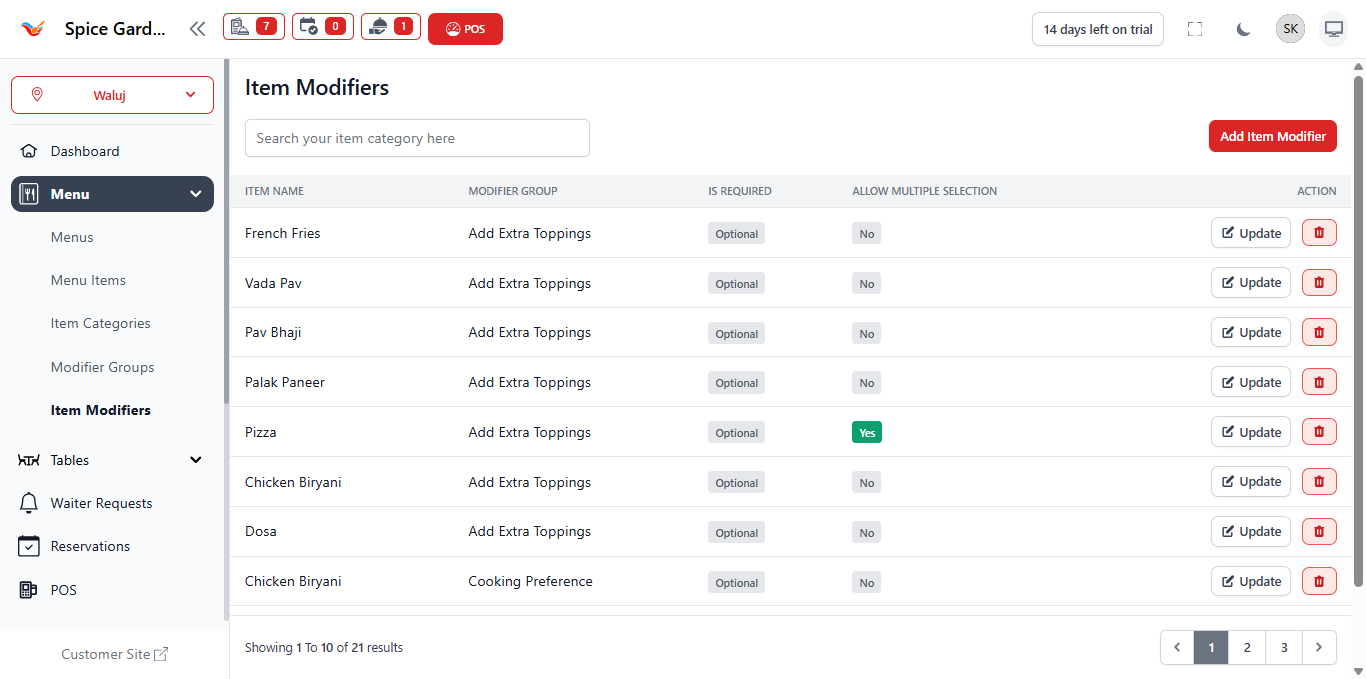
Item Modifiers allow restaurants to customize menu items during ordering. They enable flexible options such as extra toppings, spice preferences, portion upgrades, and special preparation instructions.
1. What Are Item Modifiers?
Item Modifiers are selectable customization options attached to menu items. These options appear during POS ordering and allow staff or customers to personalize dishes without creating multiple menu entries.
Example:
- Extra Cheese (+₹30)
- No Onion
- Less Spicy
- Large Size Upgrade
Modifiers automatically adjust pricing and order instructions sent to the kitchen.
2. Modifier Groups vs Item Modifiers
The system separates customization into two structured levels:
- Modifier Group — A category that organizes options (e.g., Spice Level).
- Item Modifier — The selectable option (e.g., Mild, Medium, Spicy).
Think of Modifier Groups as folders and Item Modifiers as items inside them.
3. Accessing Item Modifiers
- Open the Dashboard.
- Navigate to Menu from the sidebar.
- Select Item Modifiers.
The page displays all modifiers created for your restaurant.
4. Creating a New Item Modifier
- Click Add Item Modifier.
- Enter Modifier Name.
- Select Modifier Group.
- Set Price Adjustment (optional).
- Click Save.
Example Configuration
- Name: Extra Cheese
- Group: Add-ons
- Price: +₹30
Price adjustments are automatically added to the order total.
5. Updating a Modifier
- Click Update beside a modifier.
- Edit details.
- Save changes.
Updates reflect instantly in POS ordering screens.
6. Deleting a Modifier
- Click the Delete icon.
- Confirm removal.
Deleting a modifier removes it from all menu items permanently.
7. How Modifiers Work in POS
- User selects a menu item.
- Assigned modifier groups appear automatically.
- Options are selected.
- Total price updates instantly.
- Kitchen receives customized instructions.
This ensures accurate preparation and billing without manual notes.
8. Best Practices
- Create groups before modifiers.
- Use short and clear names.
- Avoid duplicate customization options.
- Use price modifiers only when necessary.
- Review unused modifiers regularly.
Proper modifier setup significantly reduces order mistakes during peak hours.